The Highs and Lows: Why Correct Monitor Height is the Secret to Workday Longevity
*Purchases made through our links may earn us a commission. Please view our disclosure to learn more.
I’ve been there. It’s 3:00 PM, you’re deep into a spreadsheet or a creative project, and suddenly you feel it—that dull, throbbing ache at the base of your skull. You roll your shoulders, crack your neck, and try to power through. But have you ever stopped to look at where you are looking?
Most people treat their monitor like a picture frame; they just plop it on the desk and leave it where the factory stand dictates. As an ergonomics enthusiast, I’m here to tell you that your monitor’s height is perhaps the most critical variable in your home office. It is the difference between ending your day feeling energized and ending it feeling like you’ve been folded into a suitcase.
My Journey from “The Hunch” to Ergonomic Enlightenment
Early in my career, I worked exclusively on a laptop. I loved the portability, but my body hated the geometry. I was constantly “hunching”—chin tucked, shoulders rounded, eyes focused downward. I looked like a gargoyle guarding a cathedral. It wasn’t until I invested in a proper monitor arm and raised my screen to the correct height that my chronic “tech neck” vanished. I realized that I wasn’t tired because of the work; I was tired because my body was fighting gravity all day.
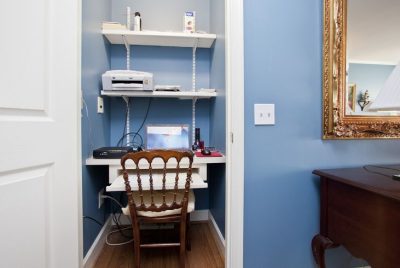
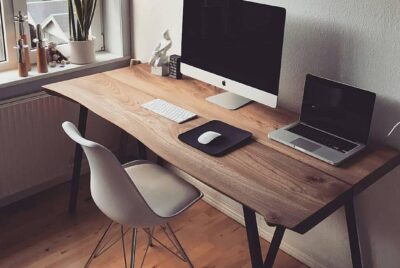
Finding the sweet spot isn’t a one-size-fits-all scenario. It involves understanding the guidelines and then personalizing them to suit individual needs. Adjustments can vary based on factors like height, eye level, and seating posture. Wither you use an ERGONOMIC DESK, a COMPACT DESK or are going MINIMALIST, correct monitor height is essential.
The Anatomy of a Workspace: Why Your Neck is a Crane
To understand monitor height, you have to understand the physics of your own head. Your head weighs, on average, about 10 to 12 pounds. Think of it as a heavy bowling ball. When your head is perfectly balanced over your shoulders, your neck and spine handle that weight effortlessly. However, for every inch you tilt your head forward to look down at a low monitor, the “effective weight” of your head increases significantly. At a 45-degree angle, that bowling ball suddenly feels like it weighs 50 pounds!
When you look down, the muscles in the back of your neck (the extensors) have to work overtime to keep your head from falling onto your chest. Imagine holding a 10-pound weight in your hand. If you hold it close to your body, it’s easy. If you hold it out at arm’s length, your muscles start to scream within minutes. That is exactly what you are doing to your neck when your monitor is too low.
The Golden Rule: Finding the “Top Third” of Your Screen
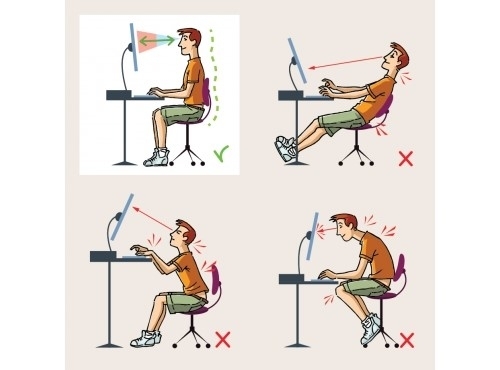
If you take nothing else away from my advice, remember this: The top third of your monitor screen should be at eye level.
To measure your eye level, sit in your chair with your back supported and your shoulders relaxed. Look straight ahead as if you’re looking at the horizon. Your eyes should land naturally on the top 25-30% of the screen. This allows you to scan the rest of the monitor by moving your eyes downward, which is much more natural and less straining than tilting your head up or down.
The Sitting Position vs. Standing Position Variance
If you use a sit-stand desk, remember that your monitor height might need a slight adjustment when you transition. When we stand, we tend to lean slightly further back from the screen. Always re-verify that “top third” rule every time you change your desk height.
6 Top Adjustable Monitor Arms & Mounts from $30 – $360
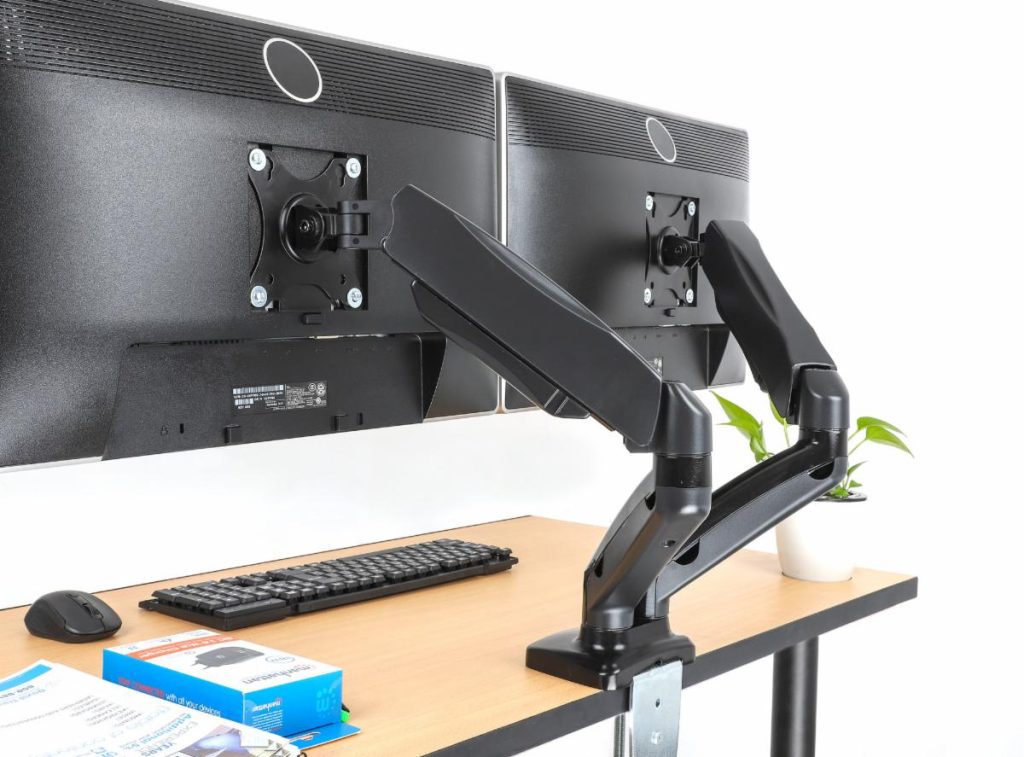
HUANUO Dual Monitor Mount– A sturdy dual-arm mount that raises two monitors to eye level, reducing neck strain and improving posture. Highly rated for ease of installation and sturdy performance (fits most 13″–34″ screens).
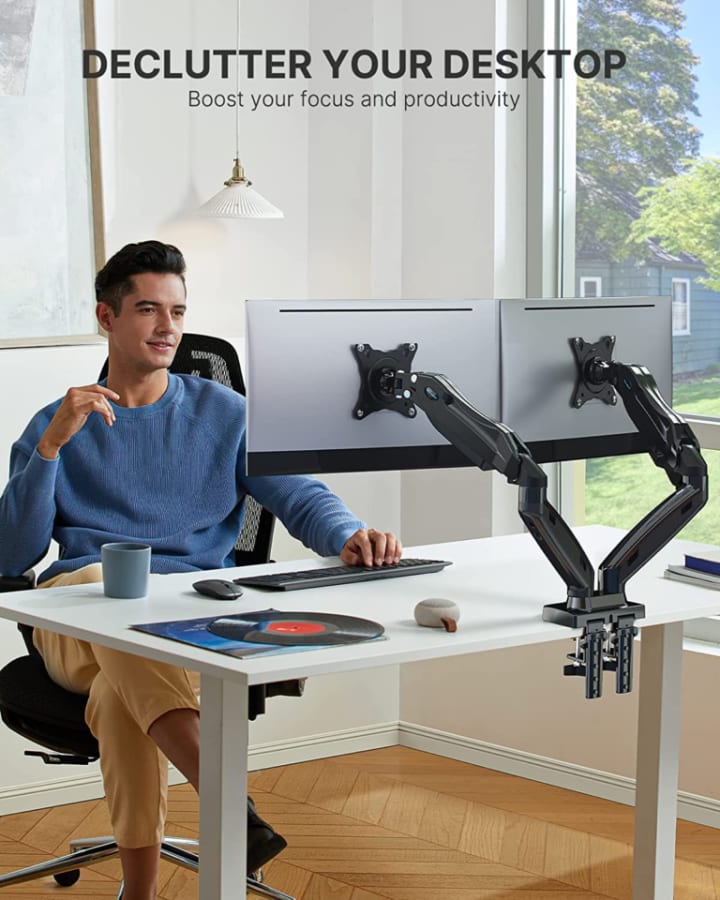
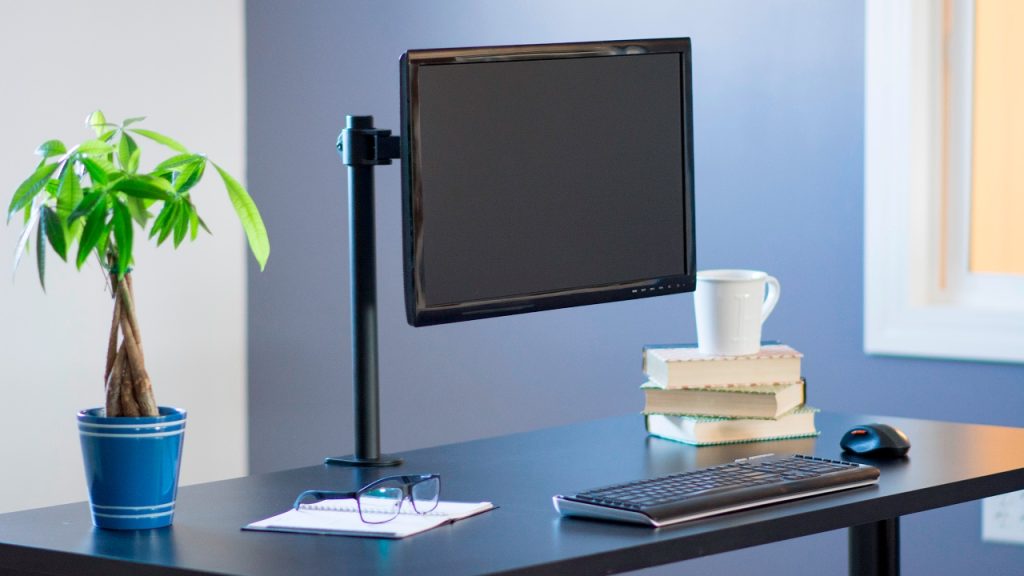
VIVO Single Monitor Desk Mount – A highly recommended adjustable single monitor arm with solid steel construction and cable management — flexible articulation to position your display ideally.
Mount-It! Dual Monitor Desk Mount – Gas-spring dual monitor mount with smooth height adjustments, tilt, swivel, and rotate functions for ergonomic multi-screen setups.
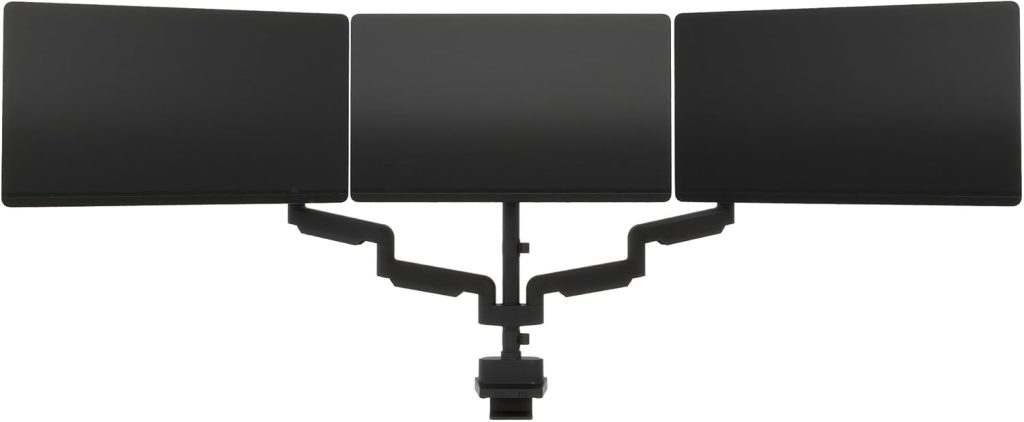
Vari Triple Monitor Arm – Premium choice for setups with three displays, lifting them off your desk to free space and improve viewing angles
.
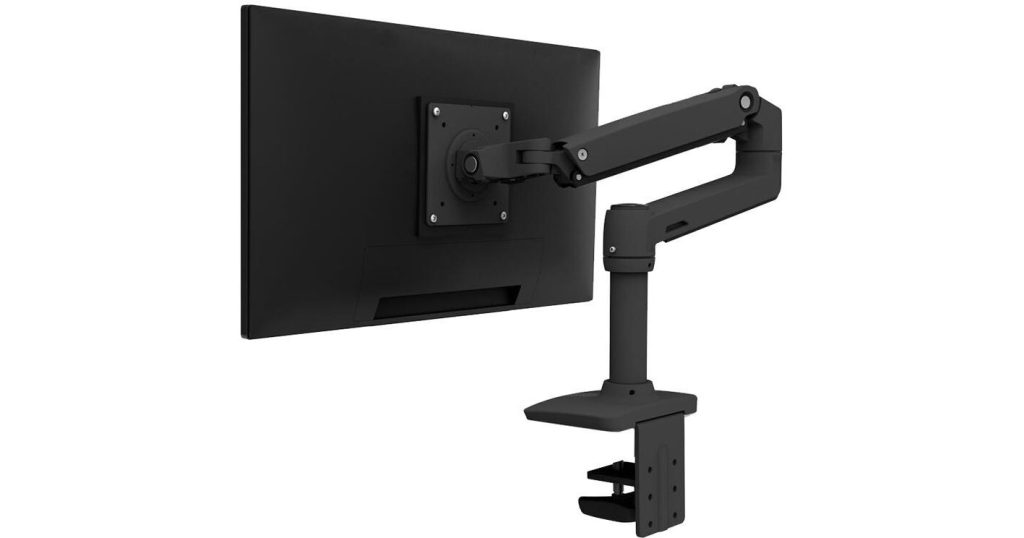
Ergotron LX Desk Monitor Arm – A higher-end monitor arm with constant-force adjustment — great for larger displays up to ~34″.
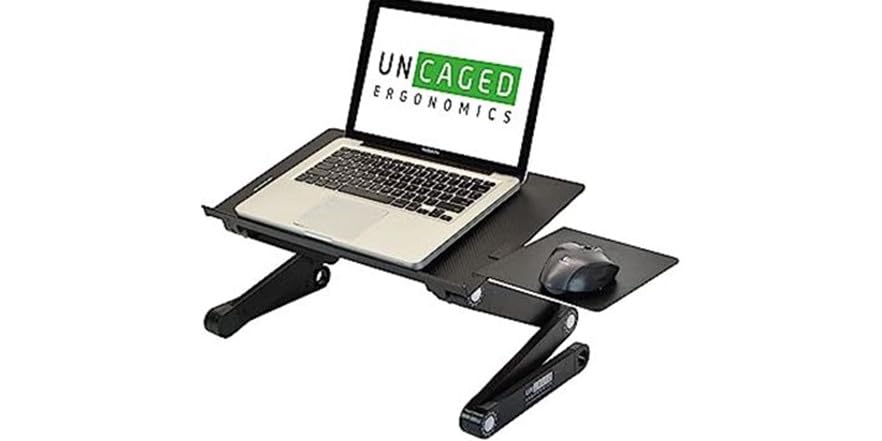
WorkEZ Adjustable Laptop Stand – Solid ergonomic design that is also foldable and portable. Perfect for the home office minimalist. Great if you prefer not to mount your display.
3 Pros of Optimizing Your Monitor Height
- Drastic Reduction in Pain: You’ll notice an almost immediate decrease in neck, shoulder, and upper back tension.
- Increased Focus and Productivity: It’s hard to stay in a “flow state” when you’re physically uncomfortable. Proper ergonomics removes the distraction of pain.
- Better Long-Term Spinal Health: You are actively preventing “Forward Head Posture,” which can lead to permanent changes in your spinal curvature over decades.
3 Cons of Ignoring Your Screen Ergonomics
- Chronic “Tech Neck”: This leads to tension headaches, reduced range of motion, and even nerve impingement.
- Visual Fatigue: When a monitor is at the wrong height, your eye muscles work harder to focus, leading to dryness and blurred vision.
- Early Onset Fatigue: Physical strain drains your mental battery. If you’re crashing by 2:00 PM, your monitor height might be the silent energy thief.
Common Pitfalls: The Mistakes Most Remote Workers Make
The biggest mistake? Using a laptop as your primary screen without a stand. Laptops are an ergonomic disaster. Because the keyboard and screen are joined, you can’t have both at the correct height. If the keyboard is at the right height for your arms, the screen is too low. If the screen is at the right height, you’re typing with your hands in the air like a T-Rex.
If you work from home, an external monitor is a non-negotiable health investment. It allows you to separate the input (keyboard) from the output (screen), giving you total control over your posture.
Practical Tools for a Perfect Setup
You don’t need to spend a fortune to fix this, though some tools make it easier:
Monitor Arms: The Flexibility King
In my opinion, a gas-spring monitor arm is the best $50 you can spend on your office. It allows you to move the screen in 3D space. Want it higher? Done. Want to pull it closer because you’re reading small text? Easy. It also clears up desk space, making your workspace feel more open.
Monitor Risers and the DIY “Stack of Books” Method
If you aren’t ready for a monitor arm, a simple riser works wonders. And hey, if you’re on a budget, a stack of sturdy coffee table books is a perfectly valid ergonomic solution. As long as it gets that “top third” to your eye level, your neck doesn’t care if the stand cost $200 or was free from your bookshelf.
Eye Strain and the 20-20-20 Rule
Height isn’t the only factor; distance matters too. Your screen should be about an arm’s length away. To prevent eye strain, I always recommend the 20-20-20 rule: Every 20 minutes, look at something 20 feet away for 20 seconds. This allows your eye muscles to relax from the “near-focus” position.
Conclusion: Viewing Your Health in High Definition
Your home office should be a place that supports your work, not a place that harms your body. Correcting your monitor height is a simple, high-impact change that pays dividends in comfort, mood, and health. Don’t wait for the pain to become chronic before you act. Raise your screen, tuck your chin back, and start looking at your work from a better perspective. Your future self (and your chiropractor) will thank you.
FAQs
1. Should I tilt my monitor upward?
A slight upward tilt (10 to 20 degrees) can be helpful, especially if you wear bifocals or if the monitor is slightly below the ideal height. It mimics the natural downward gaze we use when reading a book.
2. What if I use two monitors?
If you use them equally, angle them in a “V” shape and sit at the point of the V. If one is your primary, put it directly in front of you and place the secondary to the side, but keep both at the same height.
3. Is a monitor that is too high just as bad as one that is too low?
Yes! If the monitor is too high, you’ll end up tilting your head back (neck extension). This can cause “crick” in the neck and significantly increase eye strain because your eyes have to stay open wider, leading to dryness.
4. How do I know if my monitor is the right distance away?
Sit back in your chair and reach out your arm. Your middle finger should just barely touch the screen. If you have to lean forward to read, increase the font size rather than moving the monitor closer.
5. Does the size of the monitor change the height rule?
The “top third” rule stays the same regardless of size. Whether it’s a 24-inch or a 49-inch ultrawide, the point where your eyes naturally rest should be in that upper portion to prevent excessive head movement.