The Importance of Typing and Computer Mouse Ergonomics
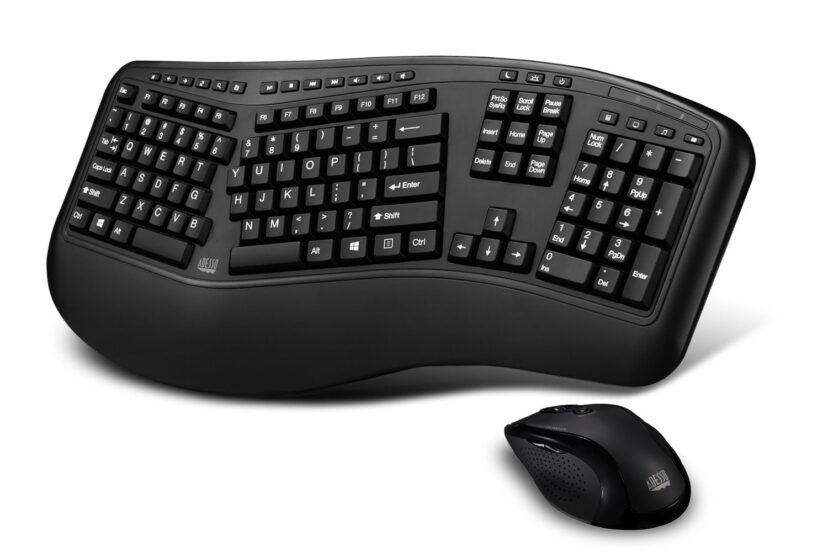
*Purchases made through our links may earn us a commission. Please view our disclosure to learn more.
Why I Care About Your Desk Setup
Have you ever felt that annoying, dull pinch in your wrist after a long day of firing off emails? Or maybe a creeping numbness in your pinky finger that you just try to shake off? I certainly have. For years, I treated my body like it was invincible, hunched over a tiny laptop keyboard, clicking away on a standard, flat mouse for ten hours a day. It wasn’t until the pain became too loud to ignore that I finally woke up.
I want to talk to you today not just as a writer, but as an enthusiast and advisor who has walked the painful path of poor desk posture and come out on the other side. Think of your hands and wrists like high-performance sports cars. You wouldn’t drive a Ferrari on flat tires over a cobblestone road, would you? Yet, that is exactly what we do to our bodies when we ignore the importance of typing and computer mouse ergonomics. Let’s dive into why your desk setup matters more than you think, and how a few simple tweaks can completely transform your workday.
Understanding Ergonomics: More Than Just a Buzzword
Whenever I bring up ergonomics, people often roll their eyes. It sounds like corporate jargon used to sell expensive, weird-looking office chairs. But strip away the marketing, and ergonomics is profoundly simple and deeply human.
At its core, ergonomics is the science of designing the workspace to fit the worker, rather than forcing the worker to contort themselves to fit the workspace. It is about harmony. When you sit at your desk, your tools—your keyboard, your mouse, your monitor—should work with your natural biomechanics. When things are not ergonomic, you are constantly fighting friction. Over time, that friction wears down your tendons, nerves, and muscles.
My personal “aha!” moment came when a physical therapist told me that the human body wasn’t designed to have its palms facing perfectly flat down on a desk for eight hours a day. Try it right now: stand up, let your arms hang loose at your sides, and relax. Notice how your palms naturally face your body, not the floor? When we force our hands flat to use a traditional keyboard and mouse, we are twisting the bones in our forearms (the radius and ulna) into an unnatural, crossed position. Realizing this completely changed how I looked at my home office.
Importance of Adjustable Chairs, Desks and Monitors
Ergonomics extends beyond keyboards and mice. AJUSTABLE CHAIRS and DESKS, as well as your MONITOR HEIGHT, play a pivotal role in maintaining proper posture and preventing musculoskeletal issues. Customizable height and support features can significantly enhance comfort during extended work hours.
The Anatomy of Typing: Keyboard Ergonomics
Typing is a highly repetitive kinetic action. You might strike keys thousands of times an hour. If your alignment is off by even a fraction of an inch, the cumulative stress can lead to Repetitive Strain Injuries (RSI) like carpal tunnel syndrome.
The golden rule of keyboard ergonomics is to keep your wrists in a neutral position. They shouldn’t be bent sharply upward (extension) or angled downward (flexion). They should remain as straight as possible, acting as a seamless bridge between your forearm and your fingers.
Are you a wrist-rester or a wrist-floater? Many people plant their wrists firmly on the edge of the desk or a gel pad while typing, forcing their fingers to stretch and strain. I highly recommend learning to “float” your hands while typing. Think of a concert pianist; you never see them resting their wrists on the edge of the piano. They float over the keys, using the strength of their arms and shoulders to guide their fingers. If you must use a wrist rest, use it only during breaks to rest, not while actively typing.
Mechanical vs. Membrane Keyboards
Not all keyboards are created equal. The standard membrane keyboard (the flat, mushy kind on most laptops) requires you to “bottom out” the keys—meaning you have to press the key all the way down to a hard piece of plastic to register the keystroke. This sends tiny shockwaves up your fingers.
As an enthusiast, I firmly advocate for mechanical keyboards with tactile switches. They register the keystroke halfway down, meaning you don’t have to slam your fingers into the board. It feels like typing on a cloud once you get the hang of it, and your finger joints will absolutely thank you.
Split Keyboards: A Weird but Wonderful Game Changer
If you want to take your typing ergonomics to the next level, look into a split keyboard. These boards are cut in half, allowing you to position your hands at shoulder width. Why does this matter? A standard keyboard forces you to bring your hands close together, which rolls your shoulders forward and collapses your chest. A split keyboard opens your chest up, improves your breathing, and keeps your wrists perfectly straight. Yes, they look a bit science-fiction, but the comfort is undeniable.
Mastering the Mouse: Clicking Without the Cramp
We talk a lot about keyboards, but the computer mouse is often the true villain of the home office. The tiny, repetitive movements required to navigate a screen can cause severe tension in the hand, forearm, and shoulder.
How do you hold your mouse? Are you gripping it tightly with just your fingertips, hovering your palm in the air? That’s called the “claw grip,” and it requires constant, low-level muscle tension that eventually leads to fatigue.
Instead, you want a “palm grip.” Your mouse should be large enough that your entire hand can rest on it lazily. Your fingers shouldn’t have to hover; the weight of your hand should be supported by the shell of the mouse. Treat your mouse like a comfortable armchair for your hand. If your hand is hanging off the edges, you need a bigger mouse.
Vertical Mice: The Handshake Approach
Remember earlier when we talked about how your palms naturally face inward when you relax? The vertical mouse is designed specifically for this natural posture. Instead of laying your hand flat, you hold a vertical mouse like you are giving someone a handshake.
When I first switched to a vertical mouse, it felt awkward. I felt clumsy, like I was relearning how to use a computer. But within a week, the nagging pain in my forearm vanished. By eliminating the pronation (twisting) of the forearm, you release the tension in your elbow and wrist. If you are experiencing any kind of wrist pain, a vertical mouse is the very first suggestion I make.
The Real-World Impact: Pros and Cons
Let’s get down to the brass tacks. Why should you invest your time, energy, and money into fixing your typing and mouse ergonomics? Let’s break it down into clear advantages and the stark reality of ignoring this advice.
3 Pros of Optimizing Your Ergonomics
- Drastic Reduction in Chronic Pain: The most immediate and profound benefit is the elimination or reduction of pain in your wrists, neck, and shoulders. You will finish your workday feeling physically refreshed rather than crippled.
- Increased Productivity and Focus: When you aren’t distracted by an aching wrist or a stiff neck, your cognitive energy can remain fully focused on your work. Comfortable workers are demonstrably faster and make fewer errors.
- Long-Term Career Longevity: Taking care of your hands means you are protecting your livelihood. Good ergonomics prevents debilitating conditions like carpal tunnel syndrome that could otherwise force you to take medical leave or stop doing the work you love.
3 Cons of Ignoring Ergonomics
- Development of Repetitive Strain Injuries (RSI): Ignoring ergonomics puts you at a very high risk for insidious, cumulative trauma disorders. Once RSIs develop, they are notoriously difficult and slow to heal.
- Increased Medical Costs and Lost Time: The cost of an ergonomic mouse is pennies compared to the cost of physical therapy, doctor visits, cortisone shots, or even surgery down the line.
- Declining Mental Health and Burnout: Chronic physical discomfort rapidly bleeds into your mental well-being. Waking up knowing that your workspace is going to cause you pain leads to dread, decreased motivation, and rapid burnout.
Bringing It All Together: The Ecosystem of Your Desk
Ergonomics doesn’t happen in a vacuum. You can buy the most expensive, scientifically advanced split keyboard and vertical mouse on the market, but if the rest of your desk is a mess, you will still hurt. Your desk setup is a delicate ecosystem.
Your chair height dictates the angle of your arms, which in turn dictates how you interact with your keyboard and mouse. Adjust your chair so your feet are flat on the floor and your knees are at a 90-degree angle. Next, look at your elbows. When your hands are on your keyboard, your elbows should also be at roughly a 90 to 100-degree angle, resting close to your body.
If you have to shrug your shoulders to reach your keyboard, your desk is too high. If you have to slouch down, it’s too low. A keyboard tray or an adjustable standing desk can be a massive help in fine-tuning this alignment. Remember, your tools must adapt to you!
Conclusion
Investing in typing and computer mouse ergonomics is, quite literally, investing in your own future. We live in a digital age where our screens and peripherals are the primary conduits through which we interact with the world. Doesn’t it make sense to make that interaction as seamless and painless as possible?
Don’t wait until you are icing your wrists every evening to make a change. Start small. Assess your posture right now. Try elevating your wrists, relaxing your grip on your mouse, or swapping out your flat keyboard for something with a bit more curve and support. It takes a little bit of time and experimentation to find the perfect setup for your unique body, but I promise you, the payoff is immeasurable. Take control of your workspace today, and your body will thank you for decades to come.
FAQs
1. How long does it take to get used to an ergonomic keyboard or vertical mouse?
Typically, it takes about one to two weeks to build the new muscle memory. You will likely type slower at first and feel a bit uncoordinated with a vertical mouse, but if you stick with it, your speed will return, and the comfort will far exceed your old setup.
2. Are wrist rests actually bad for you?
They aren’t inherently bad, but they are often misused. If you rest your wrists while typing, you compress the carpal tunnel and force your fingers to stretch awkwardly. Wrist rests should only be used to rest your palms during breaks in typing.
3. Do I need to buy an expensive ergonomic setup to see benefits?
Not necessarily! While specialized gear helps, you can make huge strides just by adjusting your posture, changing the height of your chair, floating your wrists, and consciously relaxing your grip on your current mouse.
4. What is the “90-90-90 rule” in office ergonomics?
It is a simple guideline for seating posture: your elbows should be at a 90-degree angle, your hips at a 90-degree angle, and your knees at a 90-degree angle. This keeps your joints in a neutral, low-stress alignment.
5. Can laptop users practice good ergonomics without external devices?
It is extremely difficult. Laptops force a tradeoff: if the screen is at eye level, the keyboard is too high; if the keyboard is at the right height, you have to crane your neck down to see the screen. I highly recommend that laptop users invest in at least a laptop stand, an external keyboard, and an external mouse. See our LAPTOP SURVIVAL GUIDE.