The Laptop Survival Guide: Thriving in the Digital Jungle Without the Backache

*Purchases made through our links may earn us a commission. Please view our disclosure to learn more.
The Laptop Paradox: Why Convenience is Killing Your Posture
Let’s face it: the laptop was never designed for eight hours of continuous use. It was born as a tool for “portability”, a way to check emails on a train or finish a presentation in a hotel room. But here we are, in 2026, using these sleek metal slabs as our primary workhorses. The “laptop paradox” is simple: for the screen to be at the right height for your eyes, the keyboard is too high for your hands. If the keyboard is at the right height for your wrists, the screen is too low for your neck.
Have you ever noticed the “laptop hunch”? It’s that slow, agonizing curl of the spine where your chin inches closer to your chest as the day goes on. I’ve lived it. I used to think I was just tired, but I was actually fighting a losing battle against gravity and poor design. To survive, we have to stop treating the laptop as a single unit and start treating it as the “brain” of a larger, smarter system.
For more information on minimalist ideas, click on the following:
The Ultimate Guide to an Ergonomic Home Office for the Minimalist
Crafting the Best Ergonomic Setup for Small Apartments
The Ergonomic Design Flaw: The Screen-Keyboard Connection
The fundamental flaw is the fixed distance between the keys and the display. When you use a laptop on a flat desk, you are forced to look down. This puts an incredible amount of pressure on your cervical spine. Did you know that for every inch your head leans forward, it gains about 10 pounds of effective weight? By the end of a workday, your poor neck might be supporting the weight of a heavy bowling ball.
Pros of Mastering the Laptop Survival Guide
- Elimination of “Tech Neck”: Proper setup ensures your spine remains in a neutral “S” curve rather than a stressed “C” curve.
- Skyrocketing Productivity: When you aren’t distracted by a dull ache in your shoulders, you can actually stay in a flow state for longer.
- Long-Term Joint Health: By using external peripherals, you prevent repetitive strain injuries (RSI) like Carpal Tunnel or Tendonitis.
Cons of Ignoring Laptop Ergonomics
- Chronic Tension Headaches: Straining your neck muscles leads to “referred pain” that often manifests as a throbbing headache by 3:00 PM.
- Permanent Postural Changes: Constant slouching can lead to a “dowager’s hump” or rounded shoulders that persist even when you aren’t working.
- Decreased Machine Lifespan: Working with a laptop flat on a desk (especially on soft surfaces) often chokes the airflow, leading to overheating and hardware failure.

Phase 1: Elevate Your Perspective (The Magic of Laptop Stands)
If you take only one piece of advice from this guide, let it be this: Get your laptop off the desk. A laptop stand is the single most important “survival” tool in your arsenal. It’s the ergonomic equivalent of a foundation for a house. Without it, everything else is just a temporary fix.
Fixed vs. Adjustable Stands: Finding Your Perfect Height
I’ve tried them all. Fixed stands are great for stability, but ADJUSTABLE STANDS are the gold standard. Why? Because your height and your desk height are a unique combination. You need to be able to fine-tune the elevation. Look for a stand that can bring the center of your screen to eye level.
Why Your Eyes Should Always Hit the Top Third of the Screen
Here is a pro-tip: adjust your stand so that your eyes are naturally looking at the top third of the monitor. This encourages a slightly downward gaze that is easier on the eyes, while keeping your head squarely over your shoulders. Think of it as “gazing” rather than “staring.”
Three Laptop Stands I highly recommend
Uncaged Ergonomics WorkEZ – Adjustable up to 18″ with a sizable top panel; good for most laptop computers and tablets. Also versatile for all ergonomic setups and needs including monitor height.
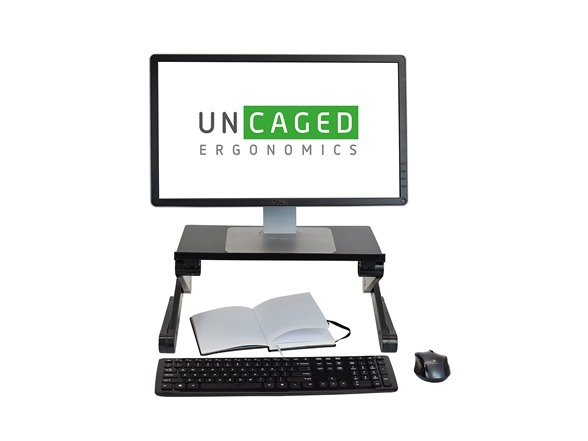
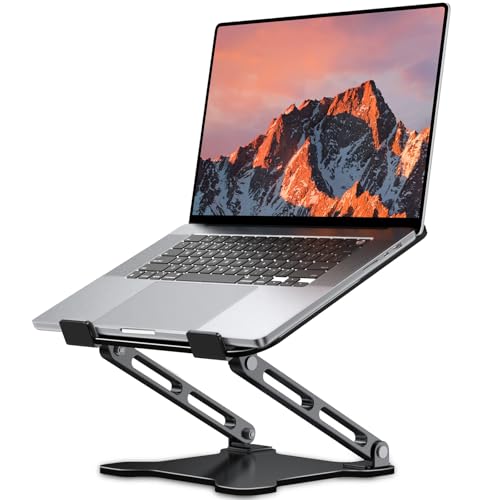
Nulaxy Ergonomic Adjustable Laptop Stand – I recommend this Nulaxy folding laptop stand because not only is it a heavy duty stand built for 10″-17″ tablets and laptops, but for it’s posture correction abilities as well. A no-thrills work horse and a good all-around choice.
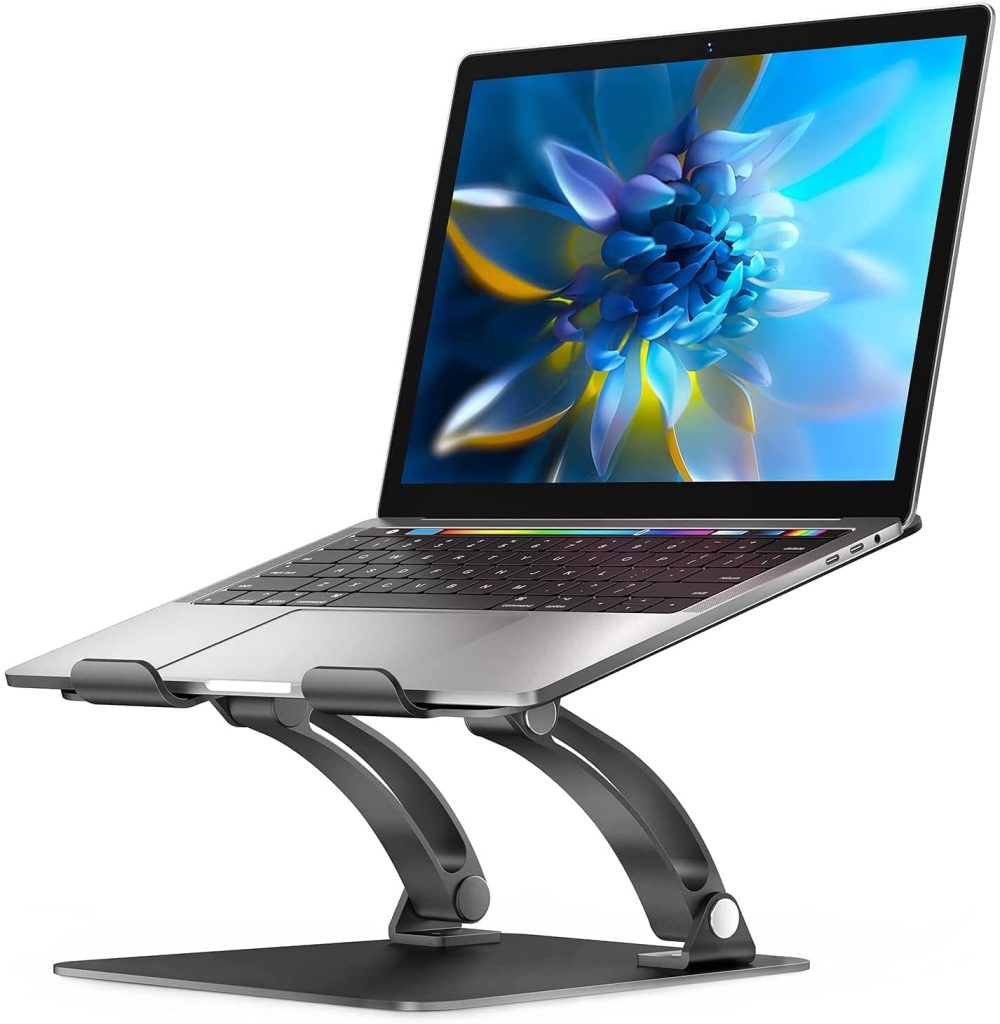
LOXP Adjustable Laptop Stand – An other great folding laptop stand for 10″ to 16″ tablets and laptops that comes in four different colors, but also comes in two models with 360 deg rotation bases. Adjustable height and portability makes this stand a great choice for when you’re on the go, or for an afternoon at the coffee shop. I highly recommend this stand as well!
Phase 2: Decoupling Your Peripherals (The Freedom of Separation)
Now that your laptop is hovering in the air like a futuristic terminal, how do you type? You don’t. At least, not on the laptop’s keyboard. This is where we break the “shackles” of the device.
The External Keyboard: Giving Your Shoulders Room to Breathe
Laptop keyboards are cramped. They force your wrists to ulnar-deviate (bend outward) and your shoulders to internally rotate. By adding an EXTERNAL KEYBOARD, ideally a mechanical or split ergonomic one, you allow your arms to fall naturally at your sides. It’s like stepping out of a tiny phone booth into an open field. Your elbows should form a 90-degree angle, and your wrists should be flat, not tilted up.
The Mouse Revolution: Say Goodbye to the Trackpad Cramp
Trackpads are a marvel of engineering, but they are a nightmare for your thumb and index finger. The repetitive “clawing” motion required to navigate a screen for eight hours is a recipe for disaster. I transitioned to a VERTICAL MOUSE mouse years ago, and I’ve never looked back. A vertical mouse keeps your hand in a “handshake” position, which is the natural resting state of your forearm.
My 5 Laptop Survival keyboard and mouse choices.
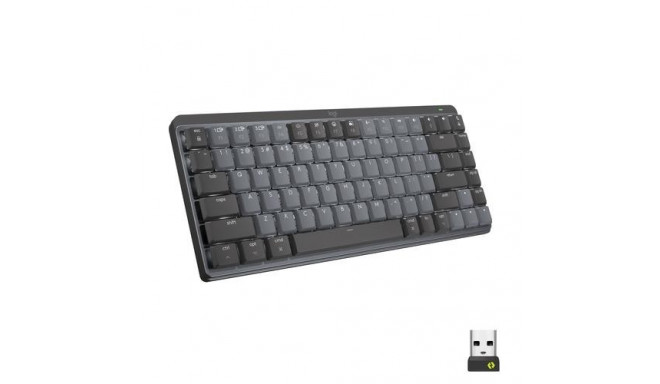
Logitech MX Mechanical Mini for a reliable, low-profile 60% wireless experience. I enjoy the fact that this keyboard is simple in design and can be easily moved out of the way. Perfect for your low-key workstation.
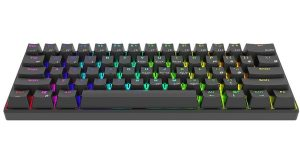
Royal Kludge RK61 is a fantastic 60% board that fits literally anywhere. Minimalist in design with colored LED’s to aid in focus, or just to brighten your desk up. Another great choice!
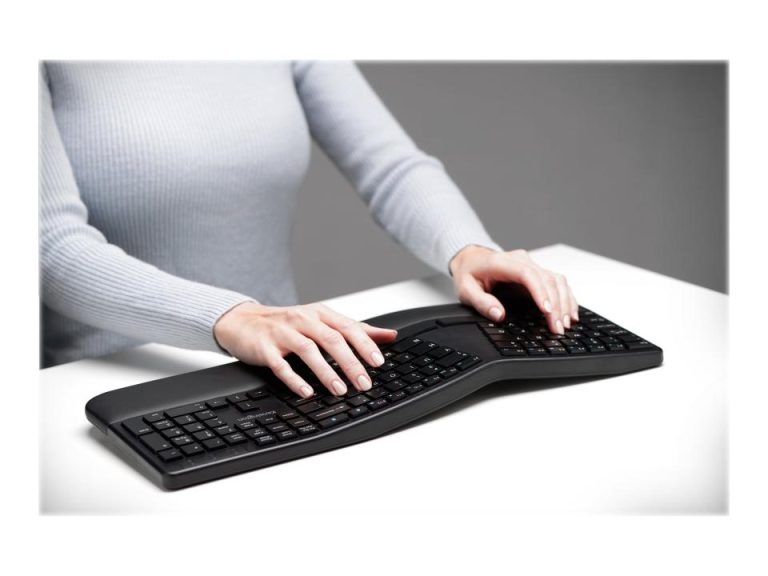
Kensington Pro Fit Ergo Wireless Keyboard – I recommend this full-sized wireless ergonomic keyboard if you use a ten-key frequently. With a split and sloped key layout, the comfort and support it provides is worth the little extra space.
Logitech Ergo M575S Wireless Trackball Mouse – This trackball-style ergonomic mouse keeps your hand in a relaxed posture while a stationary ball lets you scroll without moving your arm. It’s great for small desks or tight spaces and excels at reducing forearm strain.

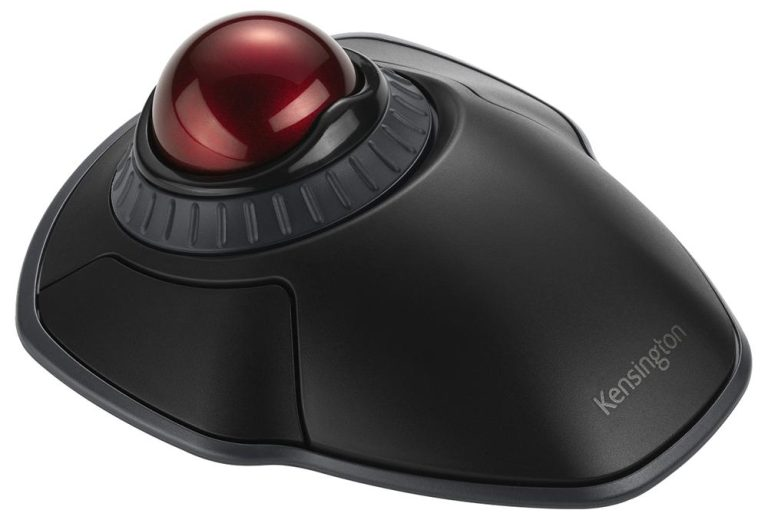
Kensington Orbit Wireless Trackball with Scroll Ring – My personal favorite, and ambidextrous friendly! This trackball includes dual Bluetooth and encryption security features. Also includes four cursor speeds as well as being adaptable to both right and left handed users. Highly recommended!
Phase 3: The Workspace Environment (More Than Just Hardware)
Survival isn’t just about what’s on your desk; it’s about the atmosphere you create around it. Lighting is often the most overlooked part of the home office.
Lighting Your Path: Banishing Glare and Eye Strain
Have you ever wondered why you feel so sleepy in the afternoon? It might not be the lunch you ate; it might be “eye fatigue” from glare. If your laptop screen is the brightest thing in the room, your eyes are working overtime. Use a high-quality DESK LAMP with a high CRI (Color Rendering Index) to balance the ambient light. And for heaven’s sake, don’t sit with a window directly behind you, the reflection will turn your screen into a mirror of headaches.
The Power of the External Monitor (The Productivity Force Multiplier)
If your budget allows, an external monitor is the ultimate “survival” upgrade. It’s not just about more space; it’s about “visual hierarchy.” You can keep your primary task on a large, high-resolution screen at eye level and use your laptop (on its stand) as a secondary screen for Slack or Spotify. It’s like upgrading from a studio apartment to a penthouse.
The Human Element: Movement as Your Best Ergonomic Tool
Even the most expensive ergonomic setup in the world will fail you if you stay static. The human body was built to move, not to be a statue in front of a flickering screen.
Every 20 minutes, look at something 20 feet away for 20 seconds. This simple habit prevents “ciliary muscle” spasms in your eyes. Think of it as a “reset button” for your focus. While you’re at it, stand up and shake your arms out. Your blood is like a river; it needs to flow to keep things healthy.
One of my favorite “survival” moves is the doorway stretch. Stand in a doorway, place your forearms on the frame, and gently lean forward. This opens up the pectoral muscles that get tight from typing. It’s the antidote to the “laptop curl.”
Technical Survival: Keeping Your Machine Healthy
A “Laptop Survival Guide” wouldn’t be complete without mentioning the health of the machine itself. A struggling laptop creates heat and noise, both of which are subtle stressors for the user.
By using a laptop stand, you’re already helping your machine “breathe” better. But don’t forget to clean the dust out of the fans every few months. Also, if you’re always plugged in, consider using a battery management app to limit the charge to 80%. It’s like not overfilling a balloon; it keeps the battery from wearing out prematurely.
And don’t forget about using a LAPTOP COOLING PAD like the Havit HV-F2056 (my personal favorite) to help keep your machine running longer, or a LAPTOP DOCKING STATION like this Anker USB C Hub to give your machine the expandability of a desktop computer with the added ability of unplugging your system and just walking away to another room or location at will.
Conclusion: Turning Your Portable PC into a Powerhouse
Working from a laptop doesn’t have to be a sentence for back pain. By elevating the screen, decoupling your peripherals, and respecting your body’s need for movement, you can turn that portable slab into a world-class ergonomic workstation. Remember, you aren’t just an “operator” of a computer; you are the most important part of the system. Take care of yourself, and the productivity will follow naturally. Don’t wait for the pain to start, start your survival plan today.
Frequently Asked Questions (FAQs)
- Can I just use a stack of books instead of a laptop stand?
Absolutely! In the beginning, I used a few thick coffee table books. It works perfectly for raising the height. Just ensure the stack is stable and doesn’t block the laptop’s vents. - Are “ergonomic” keyboards actually worth the money?
Yes, specifically because they allow for “tenting” and “splitting.” This keeps your wrists in a neutral position, which is vital if you type for more than four hours a day. - Should I use a standing desk with a laptop?
Only if you have a stand and external peripherals. Standing while hunching over a laptop on a desk is actually worse for your back than sitting. Always maintain eye-level screen height, whether sitting or standing. - What is the best way to reduce eye strain from a laptop?
Balance the light! Ensure your room is well-lit and consider using a monitor light bar. These sit on top of your screen and illuminate your desk area without causing glare on the glass. - How often should I replace my laptop battery?
If you notice your laptop dying within an hour or two, or if it feels excessively hot during normal tasks, it’s time for a replacement. A healthy battery ensures the internal components aren’t being stressed by power fluctuations.